
1-Click Terrain Conversion
Implementing OptiTerra is completely user-friendly. You do not need to create a new material in the Project window. All setup is driven directly through the R2G OptiTerra Manager component attached to your Terrain GameObject.
Method 1: Preparing from Scratch
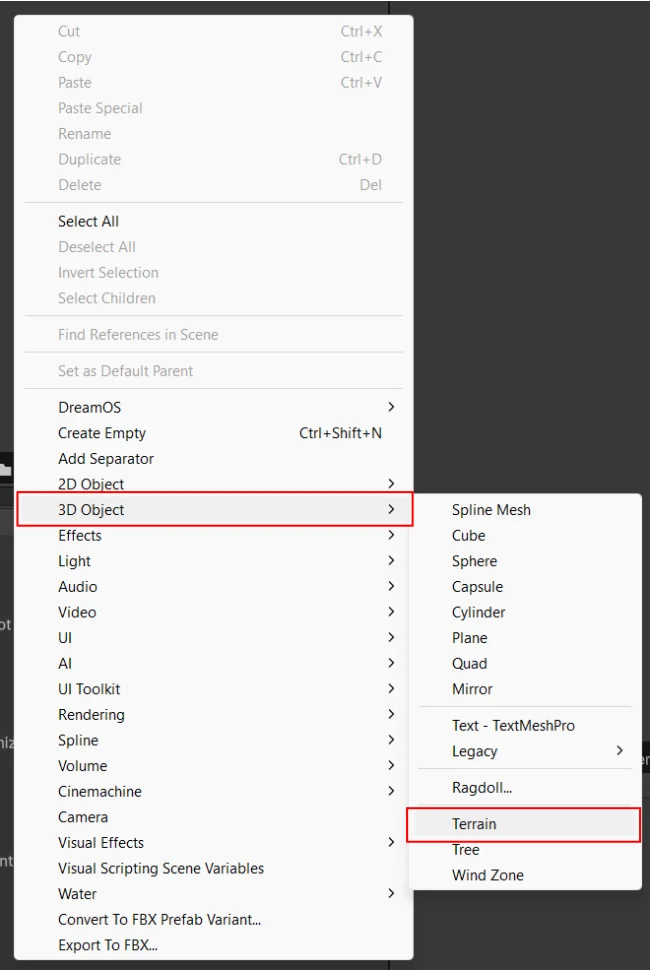
- 1Create a Terrain in the Hierarchy (GameObject → 3D Object → Terrain).
- 2Sculpt and shape your terrain elevation as needed.
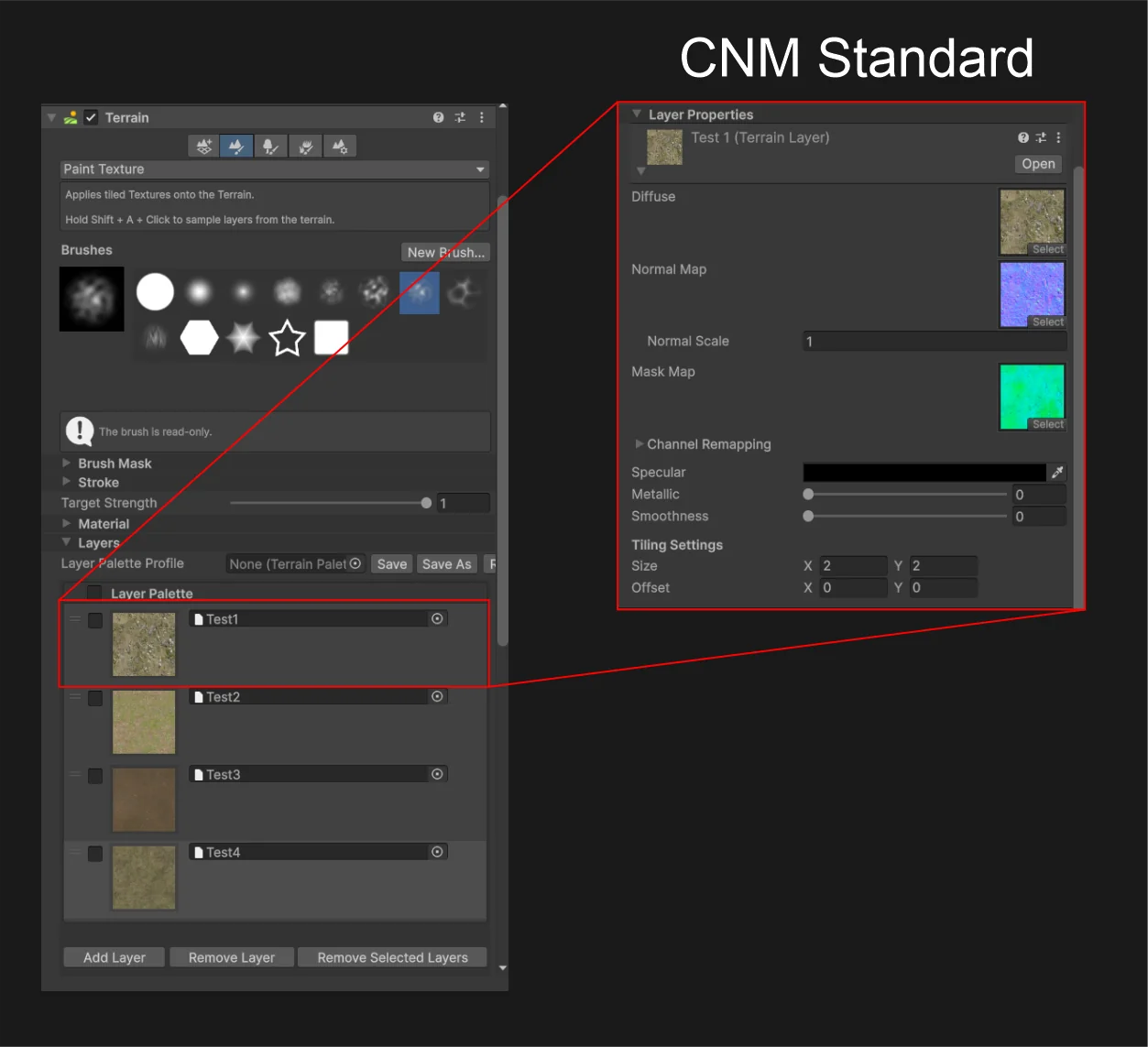
- 3Add your desired terrain layers into the native Terrain component (ensure textures follow the CNM standard format).
- 4Add the R2G OptiTerra Manager component to the Terrain GameObject.
- 5Click 'Convert to OptiTerra' — the Texture Array Generator window will open automatically.
- 6Configure resolution, filtering, and compression for CH and NOS arrays, then click Generate.
Method 2: Converting an Existing Terrain
For already sculpted environments, add the R2G OptiTerra Manager directly to the Terrain GameObject and click 'Convert to OptiTerra'.
When the component is first added, the terrain visualization may temporarily reset to default. Your underlying heightmap and layer painting data remain 100% intact.