
OptiDraw Layer System
The Layer System sits on top of the painting engines and adds non-destructive compositing. Each layer has an independent opacity, a blend mode (Normal, Multiply, Add, Overlay, Screen), and an optional per-layer mask. Layers are evaluated GPU-side at paint time, so the final result is always what you see.
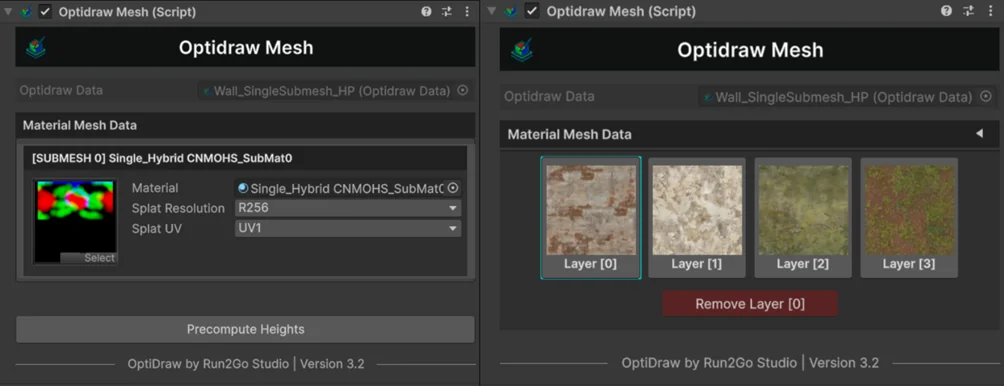
GPU-Evaluated Layer Blend Modes (Normal, Multiply, Add, Overlay, Screen)
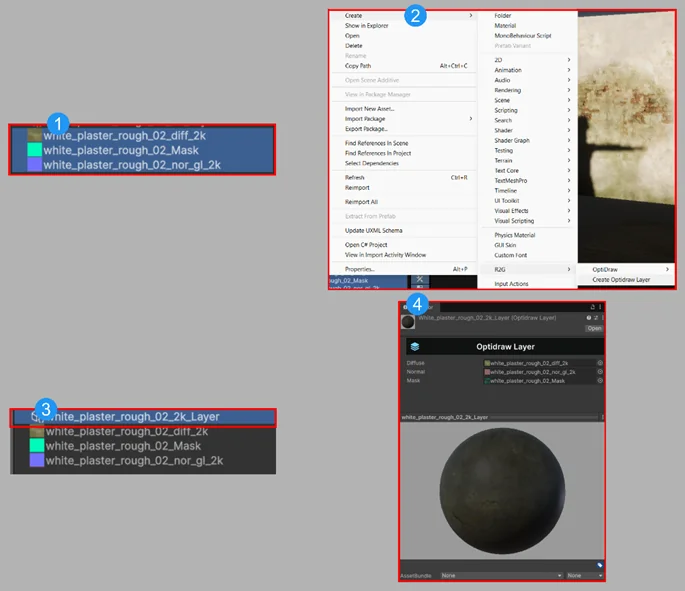
Highlight up to three textures (Color, Normal, and Mask/CNM) in your Project window. You must select at least one, but no more than three, to ensure the Optidraw Layer is generated correctly.
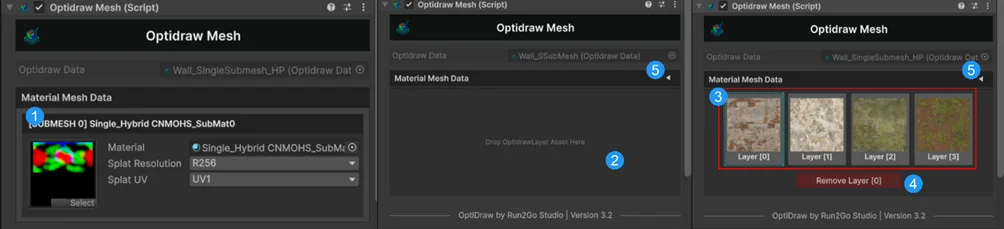
Multi-Submesh Layer Separation & Reordering
Click on the specific Submesh Header to access its dedicated layer settings.
- Add / remove layers without losing paint data from other layers
- Reorder layers via drag in the Layer Stack panel
- Lock a layer to prevent accidental strokes
- Merge visible layers down to flatten and reclaim memory
Animation Draw Mode
Painting on skinned and deformed meshes in real-time with frame scrubbers and animated preview interaction.
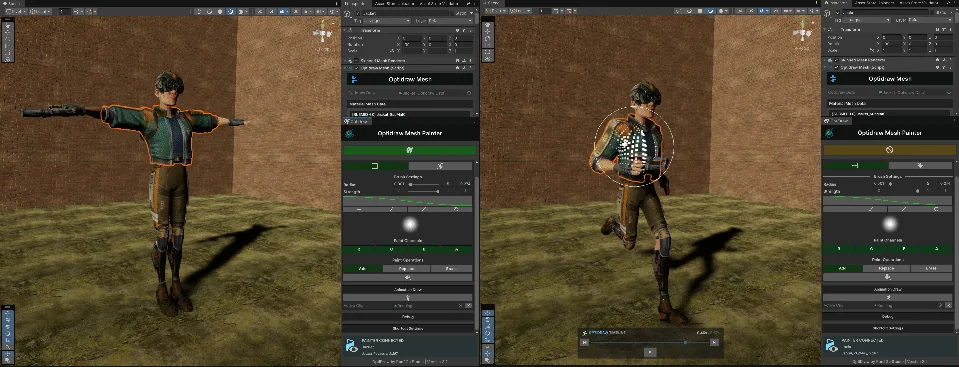
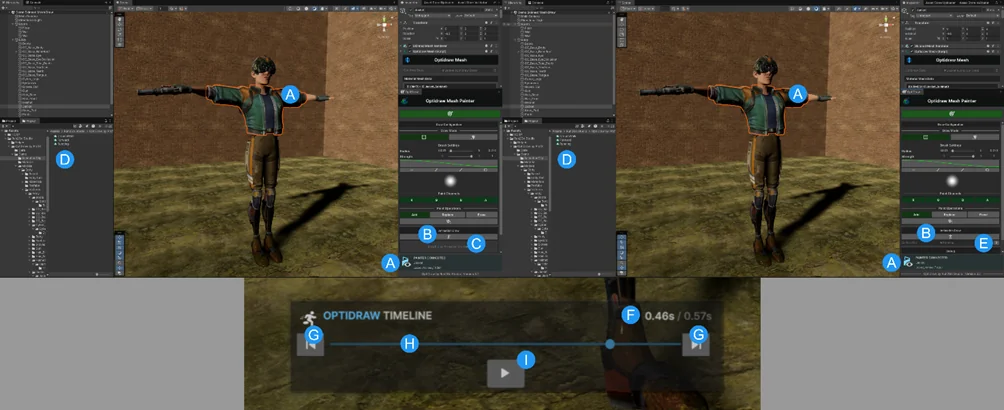
Direct Painting on Live Skinned Mesh Renderers during Animation
The system intelligently identifies the Skinned Mesh Renderer component on your selected GameObject and automatically reveals the "Animation Draw" tab.
UDIM Multi-Tile Support
For meshes with UDIM layouts (UV tiles offset by integer values: 1001, 1002, 1003…), OptiDraw automatically detects which tile a brush stroke lands on and routes it to the correct RenderTexture. The result is seamless painting across multi-tile texture sets — the same workflow as Adobe Substance Painter UDIMs.
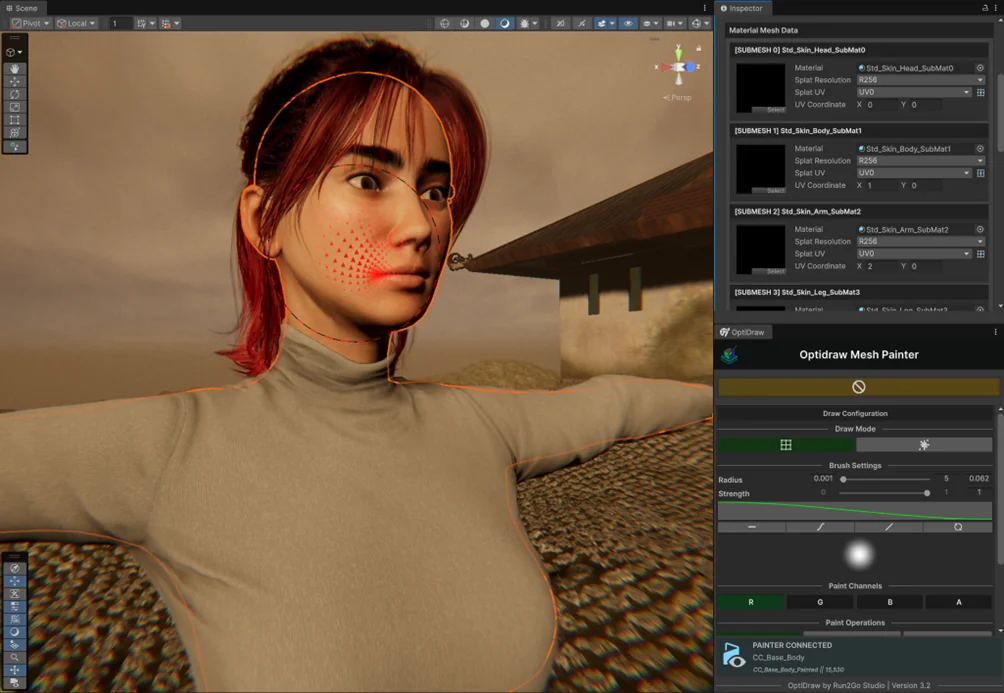
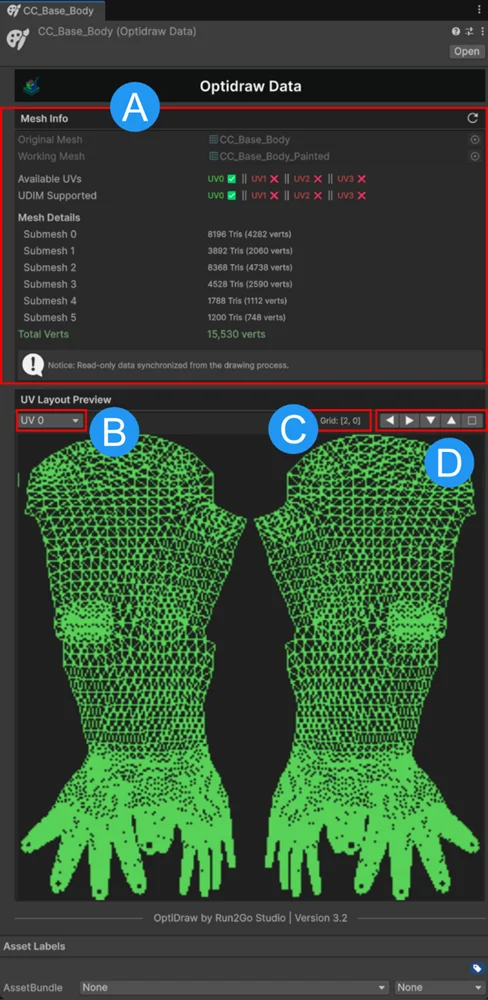
UDIM Multi-Tile Offset Configuration (1001 - 1010)
Displays comprehensive data about the connected mesh. This includes a list of available UV channels, identification of which channels support UDIM, and the total count of submeshes within the object.
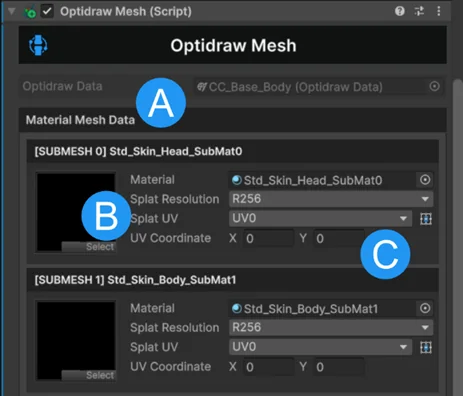
Seamless Painting Across Multi-Texture Sets
This section lists all the detected submeshes from your target object, allowing you to manage data for each individual material slot.
Auto Mask Generator
Generates paint masks procedurally from mesh geometry data, eliminating manual selection for common masking tasks:
- Curvature mask — highlights ridges (convex) or valleys (concave)
- Ambient Occlusion mask — baked AO approximated from mesh normals
- Height mask — gradient based on world-space Y position within mesh bounds
- Normal direction mask — paint only surfaces facing a chosen direction
Bake Mesh Data
Bakes the live OptiDraw paint state into static assets for runtime use. Bake targets:
- Vertex colors → baked into the mesh asset (Mesh.colors32)
- Texture paint → exported as PNG/EXR texture files linked in the material
- Splat maps → baked into UV2/UV3 on the mesh asset
After baking, the OptiDrawData asset is no longer needed at runtime. Baked meshes and textures work with any shader with zero OptiDraw dependency.
Pentab (Stylus) Support
OptiDraw reads pressure and tilt data from Wacom and XP-Pen tablets via Unity's input system. Map pressure to brush Size, Opacity, or Hardness independently. Tilt can be mapped to stroke direction for calligraphic effects. Works in both Windows and macOS editors.