
Using OptiDraw with Custom Shader Graphs
If you have an existing Shader Graph and want OptiDraw to drive its data, you only need to wire the correct data channels into your graph. OptiDraw writes to standard Unity mesh data channels — no custom nodes or extensions required.
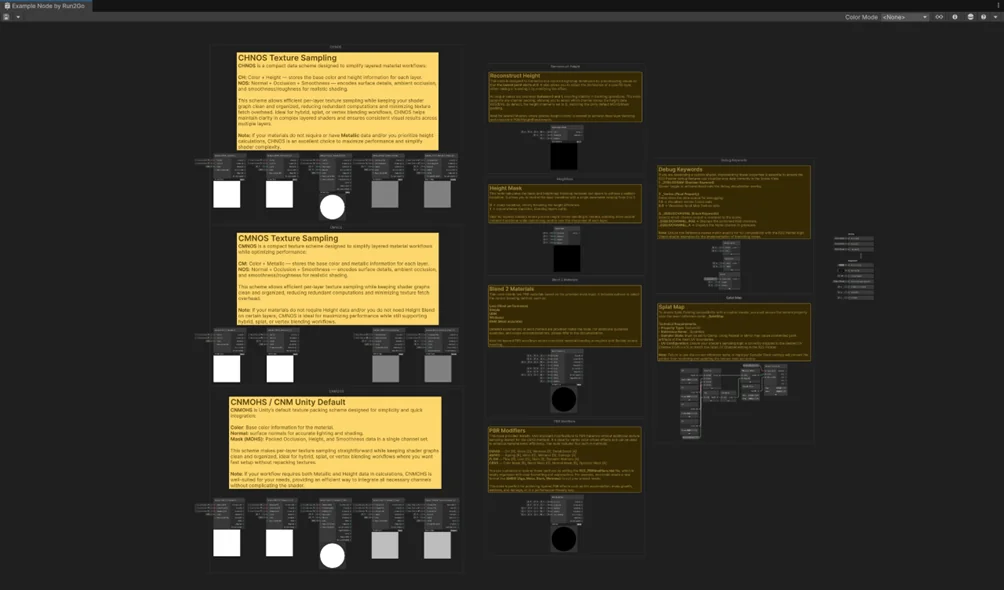
Channel Mapping
- Vertex Paint → Vertex Color node (RGBA) in Shader Graph
- Splat weights (layer 1-2) → UV channel 2 node (RG = layer1 weight, BA = layer2 weight)
- Splat weights (layer 3-4) → UV channel 3 node (RG = layer3 weight, BA = layer4 weight)
- Texture Paint (Albedo) → Sample Texture 2D from the OptiDraw baked albedo texture slot
- PBR Paint (Normal) → Sample Texture 2D → Normal Unpack → Normal node
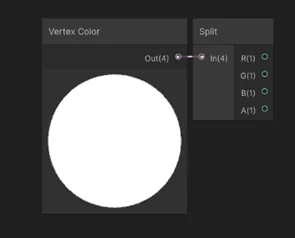
Vertex Color Node Setup in Shader Graph
In your Shader Graph, simply use the Vertex Color This node acts as a multi-channel mask (Red, Green, Blue, and Alpha).
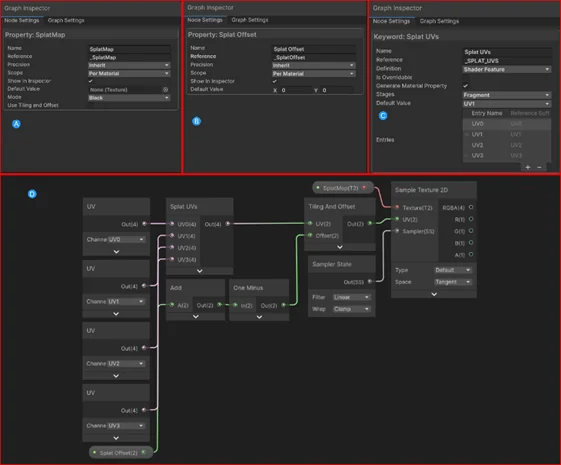
Splat Weight UV Channel Sampling & Multi-Texture Lerp Nodes
Acts as the "canvas" to store the painted data, which is then used for masking. This property must use the Internal Reference _SplatMap so the tool can identify and write data to it.
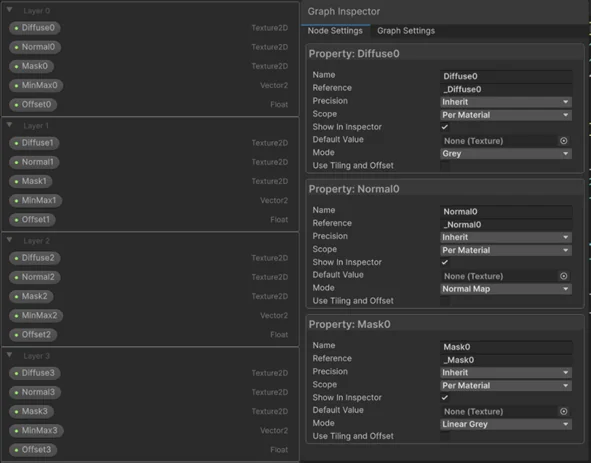
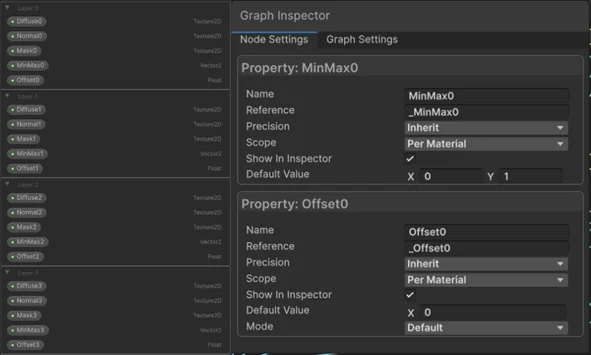
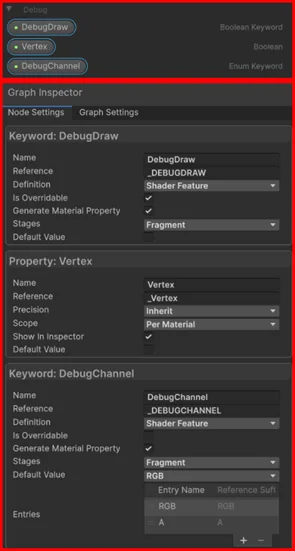
Debug View Support Keyword & Channel Switching Nodes
_DEBUGDRAW The main keyword to toggle Debug Mode on or off.
Shader Graph Setup Steps
- 1In your Shader Graph, add a Vertex Color node and plug RGBA into your desired surface properties
- 2For splat paint: add a UV node set to channel 2, split RGBA, and use each channel as a lerp weight between texture samples
- 3For texture paint: add a Texture2D property named _OptiDrawAlbedo (OptiDraw auto-binds to this name when it detects the property)
- 4Save the Shader Graph and assign to your material
- 5In OptiDraw Inspector, select your mesh — the tool detects the Shader Graph properties and maps paint output accordingly
Name your Texture2D properties with the _OptiDraw prefix and OptiDraw will auto-bind paint output textures to them. Supported: _OptiDrawAlbedo, _OptiDrawNormal, _OptiDrawMask.