
What Are Template Shaders?
OptiDraw ships with a set of ready-to-use template shaders that are pre-wired to consume OptiDraw's data output channels. They are the fastest path to seeing paint results on screen — assign the template shader to your material, and OptiDraw's brush output is immediately visible.
Included Templates
- OptiDraw/VertexColor — reads RGBA vertex colors, renders as Albedo with optional emission mask (A channel)
- OptiDraw/SplatBlend — blends up to 4 PBR texture sets using UV2/UV3 splat weights; each layer slot has independent Albedo, Normal, Metallic, and Smoothness textures
- OptiDraw/PBRPaint — samples OptiDraw's RenderTexture output maps (Albedo, Normal, MaskMap) from texture paint mode
- OptiDraw/VertexColor_Unlit — unlit variant, useful for baked lighting workflows or mobile
Assigning a Template Shader
- 1Select your material in the Project window
- 2In the Shader dropdown, navigate to OptiDraw → [template name]
- 3Assign up to 4 texture sets in the material Inspector (for SplatBlend)
- 4Select your mesh in the scene — OptiDraw Inspector will auto-detect the matching template and enable the correct painting engine
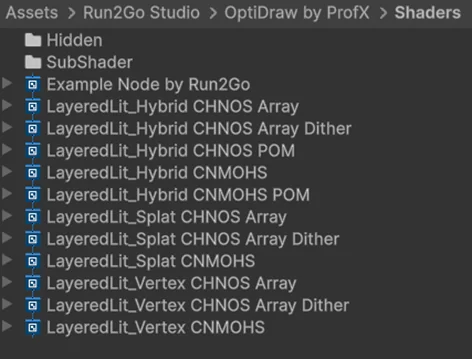
Template shaders are fully compatible with URP, HDRP, and Built-in render pipelines. Each render pipeline ships its own variant folder: Shaders/URP/, Shaders/HDRP/, Shaders/BuiltIn/.