
Error: Splat Painting not Supported by Mesh
This warning appears in the OptiDraw Inspector when you switch to Splat Paint mode on a mesh that does not have the required UV channels. Splat Paint writes blend weights to UV2 and UV3 — if those channels are absent in the mesh asset, OptiDraw cannot store the data.
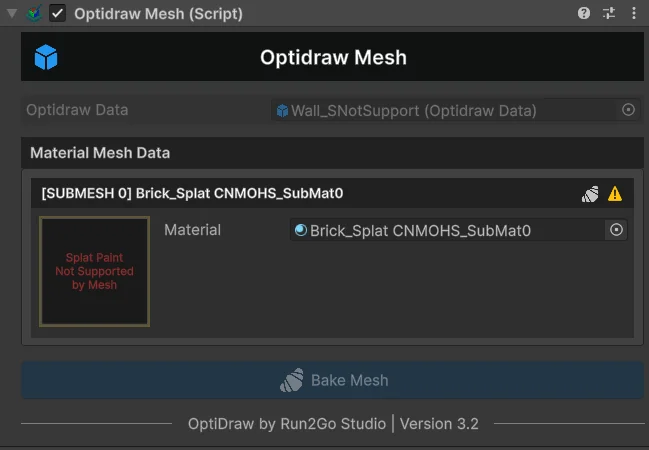
Diagnosis
- Select the mesh asset in the Project window and open the Model Import Settings
- In the Geometry tab, check whether Generate Lightmap UVs is enabled — this creates UV2, which OptiDraw can use
- Alternatively, check the mesh in a modeling app: it must have at least a second UV set for Splat Paint
Fix Options
- 1Option A — Enable UV2 generation: In the mesh's Import Settings → Geometry, enable 'Generate Lightmap UVs'. Re-import the mesh. OptiDraw will detect UV2 and enable Splat Paint.
- 2Option B — Add UV2 in your DCC: In Blender/Maya, duplicate UV0 into a second UV channel (UV2), export the FBX with both channels included.
- 3Option C — Switch engine: If adding UV channels is not feasible for this mesh, use Vertex Paint instead. Vertex colors achieve similar multi-layer blending in shaders with fewer mesh requirements.
Do not enable 'Generate Lightmap UVs' on meshes that already use baked lightmaps — it will overwrite the existing lightmap UV layout and break baked lighting.