
Engine Overview
OptiDraw ships with five distinct painting engines. Each targets a different data channel and workflow. They can be used independently or layered together on the same mesh.
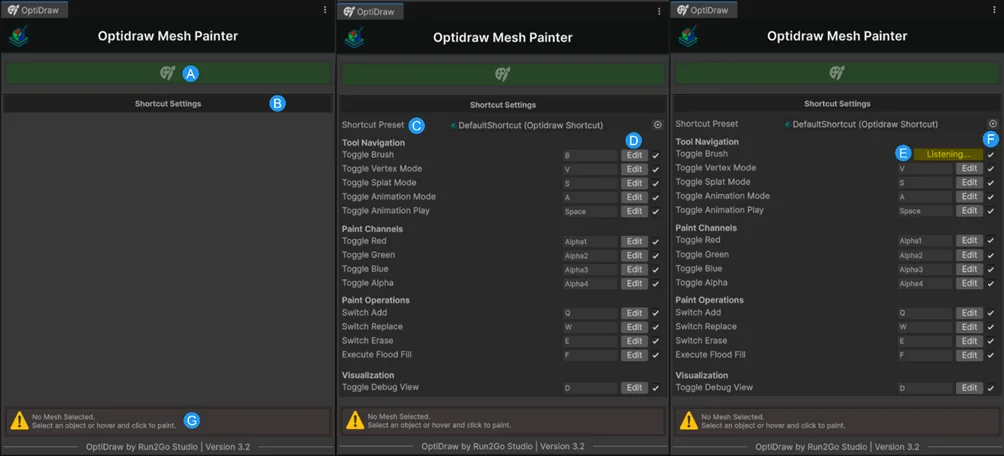
OptiDraw Engine Mode Selection: Vertex, Splat, and Texture Paint
Its not interactable when ther’s no object selected/the object that selected is not compatible with OptiDraw
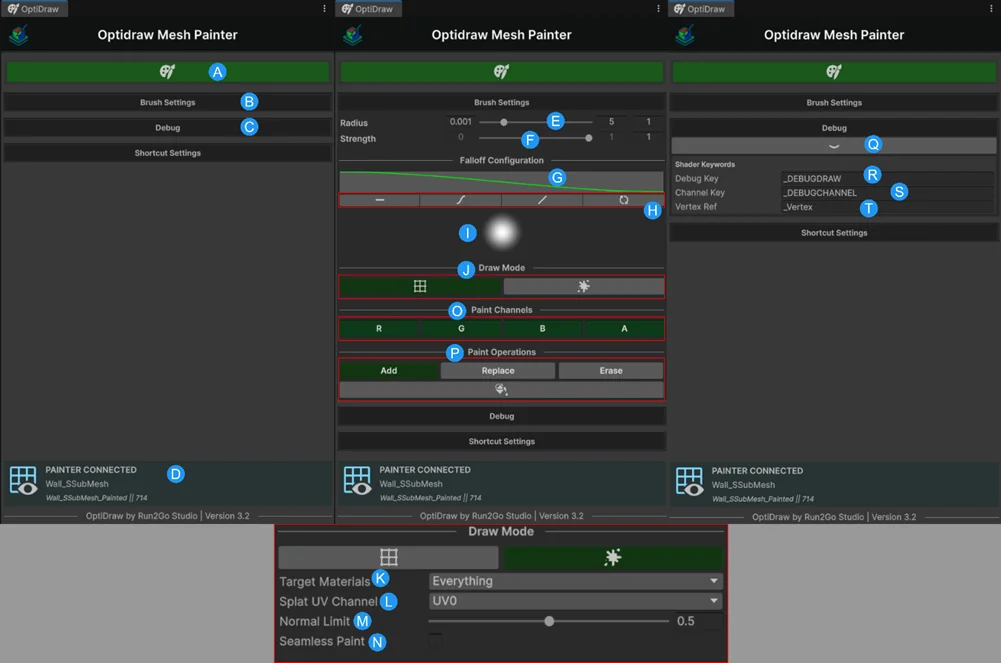
Brush Radius, Strength, Falloff Graph, and Presets
It will interactable when the selected object is compatible with OptiDraw.
Real-time Painting Viewport Interaction in Unity Scene View
You can click that tab for expand or restrict.
Vertex Paint
Writes RGBA color data directly into mesh vertex color channels. Use this for ambient occlusion masks, wetness gradients, wind weights, or any effect driven by vertex color in your shader. Brush strokes are computed in Burst and stored per-vertex with smooth falloff.
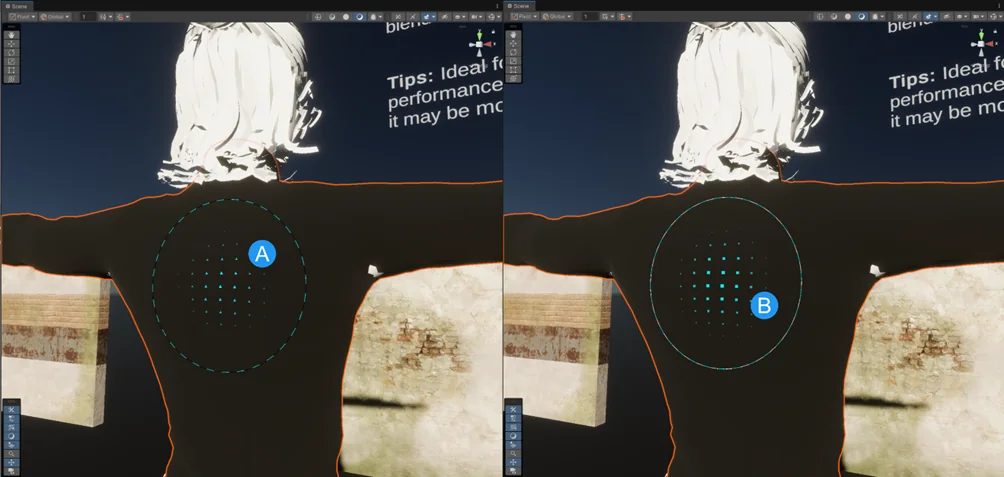
Real-time Vertex Color Viewport Painting
When the gizmo displays a triangle with a black dashed outline, it indicates that the Alpha Channel is currently INACTIVE. In this state, your painting operations will only affect the RGB channels of the vertex color.
Splat Paint
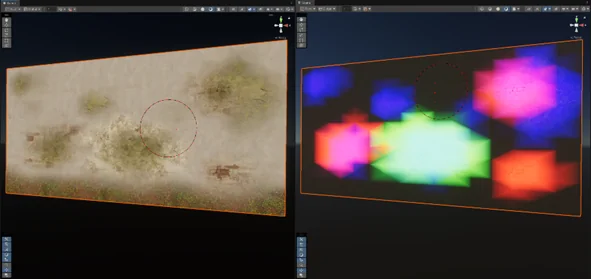
Paints layer blend weights into UV2/UV3 channels, similar to terrain splat maps. Up to 4 texture layers can be blended per mesh region. Ideal for surfaces that combine multiple PBR materials (dirt, moss, gravel, rock) without a separate mask texture.
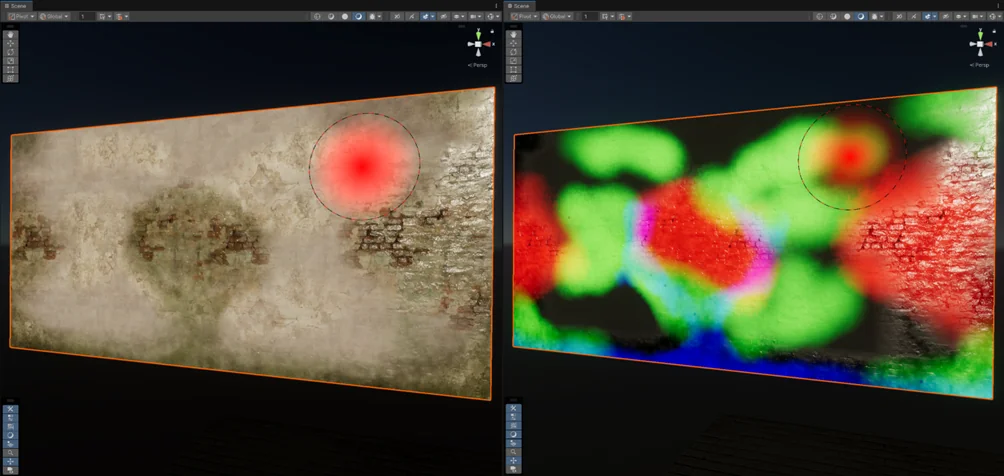
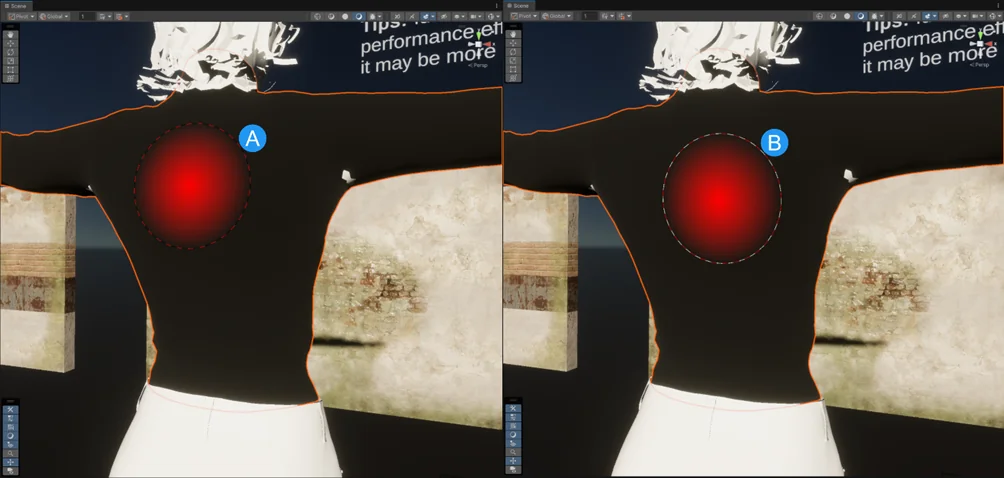
Multi-Texture Layer Splat Blending on Complex Mesh Surface
When the gizmo displays a black dashed outline, it indicates that the Alpha Channel is currently INACTIVE. In this state, your painting operations will only affect the RGB channels of the vertex color.
Splat Paint requires the mesh to have UV2 or UV3 channels available, and the assigned shader must sample those channels. See Troubleshooting if you get 'not supported' errors.
UV-Based Paint (Texture Paint)
Projects brush strokes onto the mesh's UV0 space and writes to a RenderTexture. This is the most flexible mode — it supports UDIM multi-tile layouts and produces texture assets that work with any standard shader. Think of it as a lite Substance Painter inside Unity.
PBR Paint
A compound mode that writes to multiple texture channels simultaneously in one brush stroke: Albedo (RGB), Normal (RG packed), Metallic (R), and Smoothness (A). Requires OptiDraw's template PBR shader or a compatible Shader Graph setup. Enables look-dev without leaving Unity.
Animation Draw Mode
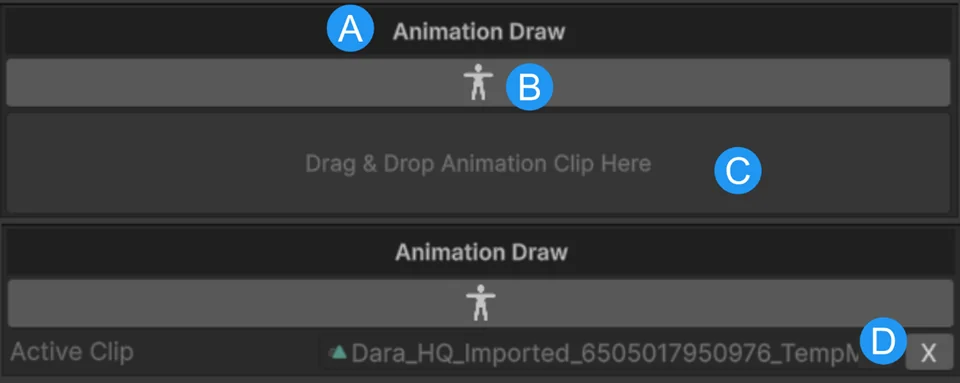
Activates painting on a SkinnedMeshRenderer while an Animator component is running. OptiDraw samples the posed mesh each frame via the Job System, so brush raycasting hits the deformed surface — not the bind pose. Indispensable for painting skin weights visualizations, muscle masks, or animated cloth stiffness.
Switch engines freely on the same mesh — all five write to separate data channels and never overwrite each other's output.